Department Revenue
The Department Revenue report allows users to view the day's activity using revenue and settlements listed by item and subtotaled by category for the selected date. As a property manager, user can use this report to analyze the revenue by category.
Perform the following steps to generate the report:
Navigate to Reports ➜ All Reports ➜ Department Revenue (under Revenue/Forecasting).
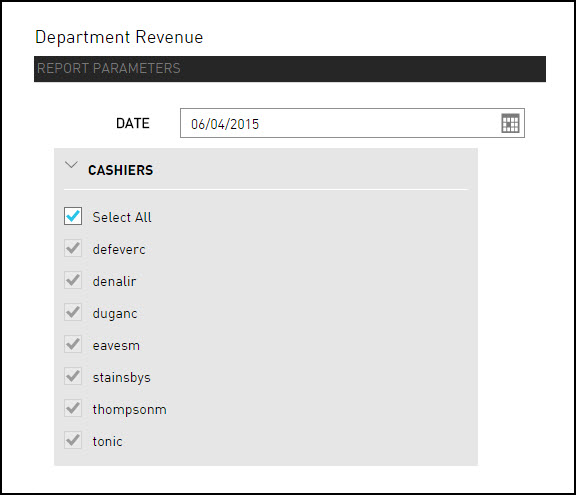
Select a date from the calendar to generate dates for the report.
Choose which Cashiers field to include in the report.
Click Generate. The report with the selected data appears.
Click Print to send a copy of the report to the printer.
Sample Report
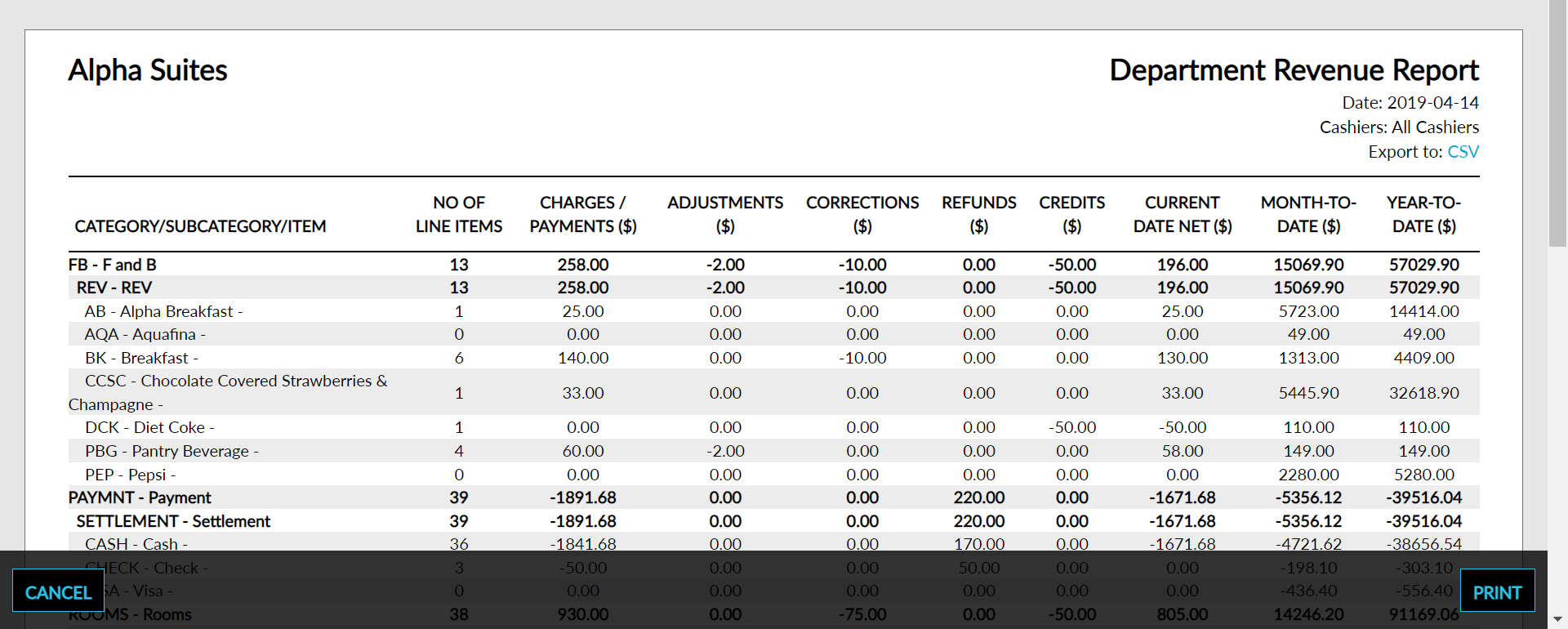
Report Parameters
This report displays the following parameters:
|
Field |
Description |
|---|---|
|
Category/Subcategory/Item |
The posted item grouped by category and subcategory of each transaction. |
|
Number of Line Items |
The total number of items accounted for on the selected date. |
|
Net Charges/Payments |
The sum of all payments posted by the selected cashier(s) on the selected date. |
|
Adjustments |
The sum of all adjustments for transactions posted by the selected cashier(s) for each item posted on the selected date. |
|
Corrections |
The sum of all corrections for transactions posted by the selected cashier(s) for each item posted on the selected date. |
|
Refunds |
The sum of all refunds for transactions posted by the selected cashier(s) for each item posted on the selected date. |
|
Current Date NET |
The net result of postings minus adjustments minus corrections for each item posted on the selected date. |
|
Current Date VAT |
The VAT for each item posted on the selected date. |
|
Month-To-Date NET |
The net sum of the net postings for the current month posted by the selected cashier(s) on the selected date. |
|
Month-To-Date VAT |
The VAT for the current month posted by the selected cashier(s) on the selected date. |
|
Year-To-Date NET |
The sum of net postings for the current year posted by the selected cashier(s) on the selected date. |
|
Year-To-Date VAT |
The VAT for the current year posted by the selected cashier(s) on the selected date. |